 Plainlist
Plain-Text Task Management for Developers: Keep Tasks Next to Your Code
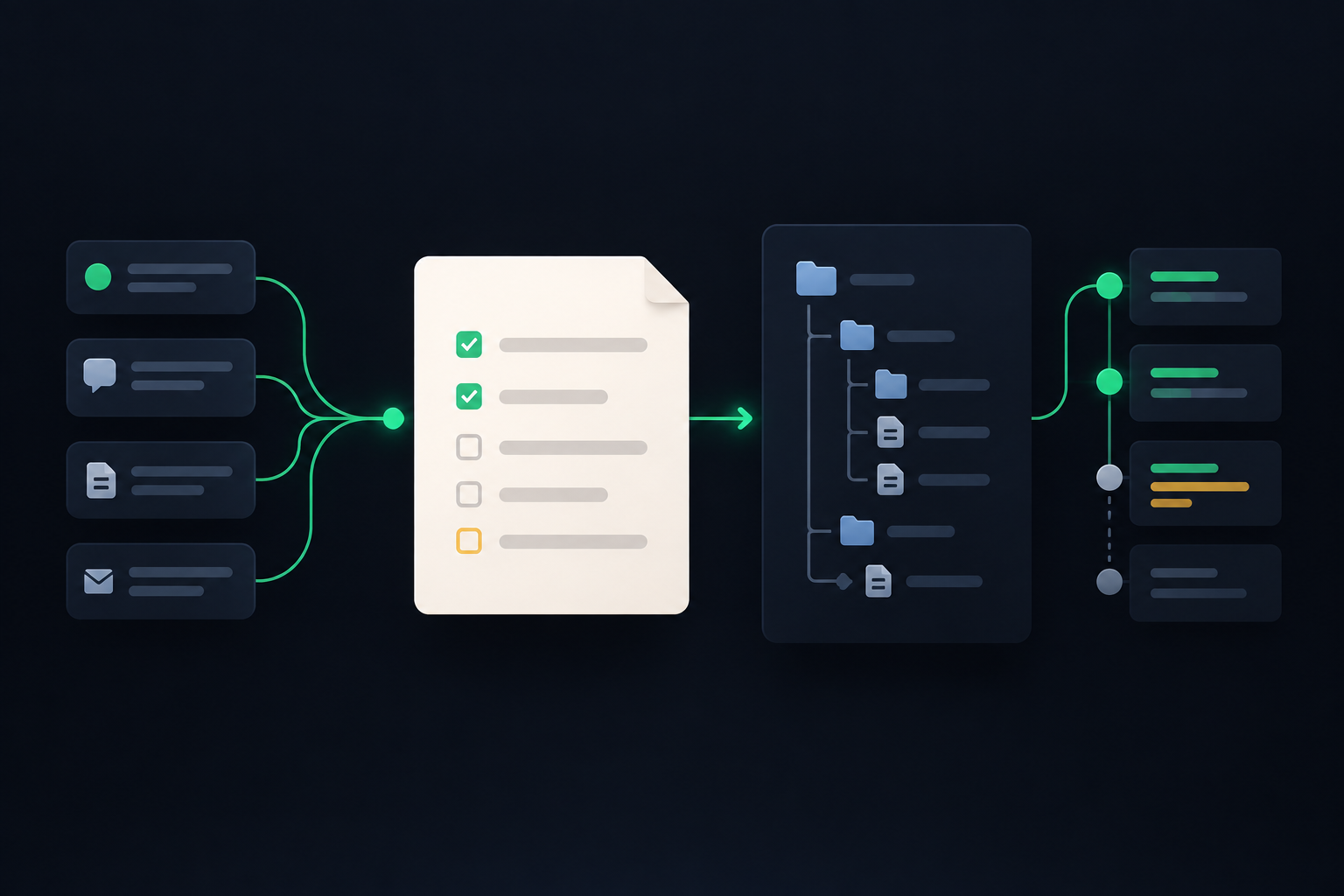
Conceptual editorial artwork. It shows the relationship between a task file, project files, and version history; it is not a product screenshot.
Most development tasks do not need another platform. “Rename this parser,” “check the staging error,” and “remove the temporary feature flag” may only need to survive until you return to the code.
That is where plain-text task management works well: the plan can live in a readable file, open in the editor you already use, and move with the project when that is useful.
The mistake is to put every kind of work in the repository. A private reminder, a team commitment, and a release-blocking defect do not have the same audience or lifespan.
The practical rule: keep short-lived implementation notes close to the code. Keep shared commitments in the team's issue tracker. Keep personal work that spans projects in a separate global task file.
This guide shows how to make that split, choose a text format, use Git without creating noise, and add command-line or AI automation without giving it too much authority.
Why plain text fits developer work
Developers already spend the day moving between an editor, a terminal, a repository, and a diff. A task file can participate in that workflow without requiring a special integration.
A readable text file is easy to:
- open beside the code
- search with editor or command-line tools
- edit without an account or network connection
- inspect in a diff before accepting a change
- copy, archive, or move without an export step
- read from a script or local agent
Those are workflow advantages, not a reason to replace team software. GitHub Issues, Linear, Jira, or another shared tracker still has the better model for assignment, discussion, dependencies, status reporting, and work that must remain visible after one developer closes the editor.
Plain text is strongest for the layer between “I noticed this” and “the team has committed to this.”
Decide where each task belongs
Use three homes rather than forcing one file to do everything.
Swipe or scroll sideways to view every column.
| Task type | Best home | Why |
|---|---|---|
| A personal reminder that spans projects | Global task file | It stays visible when you change repositories |
| A small implementation note for one codebase | Project task file | The context travels with the project |
| A team commitment, bug, or review request | Shared issue tracker | Ownership, discussion, and status remain visible |
| A temporary checklist for the current change | Branch note, scratch file, or pull-request checklist | It can disappear when the change is complete |
| A security issue, customer data, or secret | Approved secure system | A task file or Git history is the wrong place |
Use a global file for cross-project work
A global file is useful for work such as:
- review Alice's pull request
- renew a development certificate
- follow up on an infrastructure invoice
- choose tomorrow's first task
The file can sit in a folder you control and sync through the method you already trust. Do not put it inside one repository merely because that repository happens to be open.
Use a project file for code-adjacent work
A project file earns its place when a future reader needs the repository to understand the task:
Parser cleanup:
	- add a failing case for empty front matter @p1
	- remove the legacy fallback after the migration @due(2026-10-02)
	- document the new error shape
This file can be committed when the list is useful to collaborators, or ignored when it is only your working scratchpad.
Promote shared commitments out of the file
A plain-text item should move to the team tracker when any of these becomes true:
- another person is expected to own it
- it needs discussion or an approval trail
- it affects a release date or service-level commitment
- people outside the repository need to find it
- the team would be surprised if it vanished from your laptop
Keep the tracker link in the local file if it helps you plan the day. Do not maintain two competing descriptions of the same commitment.
Choose the least complicated format that fits
There is no universal developer task format. Choose the grammar your tools and habits can keep consistent.
Swipe or scroll sideways to view every column.
| Format | What it looks like | Best when | Main trade-off |
|---|---|---|---|
| Markdown checkboxes | - [ ] fix parser |
The repository already uses Markdown and the file is mainly documentation | Dates, priorities, and projects need local conventions |
| todo.txt | (A) Fix parser +backend @repo |
You want a compact, line-oriented convention with projects and contexts | Large nested plans are awkward |
| TaskPaper-style text | Projects end in :, tasks start with -, metadata uses @tags |
You want readable outlines, subtasks, and inline planning data | Other tools must understand or preserve the grammar |
todo.txt defines a deliberately small, line-based format. TaskPaper's guide documents an outline built from projects, tasks, notes, indentation, and tags. Markdown checkboxes are familiar in repositories, but Markdown itself does not define a complete task-management system.
If you already have a convention, consistency is usually more valuable than switching formats. If you are starting fresh, test the choice with one active project for a week.
A simple repo-adjacent workflow
The following loop keeps the task file useful without turning it into a second backlog.
1. Capture in one sentence
Write the next visible action, not the whole problem:
- Weak:
authentication - Better:
reproduce the expired-session redirect - Better with context:
reproduce the expired-session redirect in Safari @est(30m)
If the task needs a page of explanation, link to the issue or design note instead of copying that material into the task file.
2. Put it in the right project
Group tasks by the codebase or outcome a developer would search for. Avoid deep taxonomies that need maintenance before they become useful.
Checkout reliability:
	- reproduce duplicate submit on a slow connection
	- add an idempotency test @p1
	- confirm the retry message with support @waiting
3. Plan only the near term
A local task file is good at today's work and the next few steps. It is a poor substitute for a six-month roadmap.
Schedule only what you intend to revisit. In a TaskPaper-compatible file, Plainlist can use tags such as @start, @due, @est, and @p1 while leaving the line readable in an ordinary editor.
4. Work from a small focus set
Choose one meaningful task and one or two supporting tasks. A file containing 200 items is still a backlog, even if it opens instantly.
Plainlist reads a TaskPaper-compatible .todo file and provides Plan, Focus, and Done views over it. The file remains the source of truth, so editing it in a text editor and viewing it in the app are two surfaces over the same plan.
5. Review the diff before you commit
Version control can show when a task was added, changed, or completed. That can be useful for a shared project plan, but it can also fill the repository with personal planning churn.
Before committing the file, ask:
- does this change help another contributor understand the project?
- did an automated edit touch only the intended lines?
- does the file contain customer details, tokens, internal URLs, or other material that should not enter Git history?
- will two people edit the same list often enough to cause avoidable merge conflicts?
If the file is personal, add it to the repository's local exclude file or an agreed ignore rule. If it is shared, keep the grammar predictable and changes small.
6. Archive or delete finished local notes
Completion history is useful only when someone uses it. Move durable decisions into documentation, close shared work in the issue tracker, and let disposable implementation notes disappear.
The task file should reduce retrieval work, not become an archaeological site.
Use the command line for narrow operations
Plainlist's updates page documents a command-line companion that can list, add, search, and complete tasks, as well as add habits and goals. When no file is specified, it targets the .todo file selected in the app.
The current CLI also supports explicit file selection and JSON output. Typical operations include:
plainlist task list --today --json
plainlist task search "parser" --project Backend --json
plainlist task add "Review parser errors" --file ./tasks.todo --due tomorrow
plainlist task complete 18 --file ./tasks.todo
Treat the CLI as a precise editing surface, not permission to automate the whole plan. Prefer commands that read, filter, or make one explicit change. Check plainlist --help on the installed version before putting a command into a shared script, because the shipped CLI is the authoritative command reference.
Give scripts and AI agents a small safety boundary
A plain-text file is easy for automation to read. It is also easy for automation to overwrite.
Start with a permission ladder:
- Read: summarize today's tasks or find overdue work.
- Propose: produce a patch or list of suggested changes.
- Edit one item: add or complete a specific task after confirmation.
- Batch edit: allow only after the first three levels are reliable and reversible.
Keep these rules in place:
- require a diff before accepting broad changes
- back up the file or keep it under appropriate version control
- never place secrets, access tokens, customer data, or sensitive incident details in agent-readable task text
- do not let a commit message automatically close a task unless the mapping is unambiguous
- keep the team issue tracker authoritative for shared commitments
- stop automation when the file contains merge-conflict markers or unexpected syntax
“The agent can edit text” is not the same as “the agent understands which commitments may be changed.”
When plain text is the wrong tool
Use a shared tracker instead when you need:
- several assignees and permission levels
- threaded discussion and approvals
- reporting across teams
- dependencies, milestones, or service-level tracking
- stable links for customers or colleagues
- audit requirements beyond an ordinary file history
Plain text is also a poor fit if you depend on rich mobile capture, attachments, or built-in calendar collaboration. The right test is not whether a text file can represent the work. It is whether the surrounding workflow becomes clearer.
A practical starting setup
You can test the method without migrating your existing system:
- Create one global file for personal cross-project work.
- Create one project file beside a single active codebase.
- Keep team commitments in the existing shared tracker.
- Run the system for five working days.
- At the end of the week, remove fields or categories you did not use.
If the files help you return to the next action faster, keep them. If you spend more time curating the task syntax than writing code, simplify the format or go back to the tracker you already trust.
Frequently asked questions
Should I commit my task file to Git?
Commit it when the file is a shared project artifact and its history helps collaborators. Keep it untracked when it is personal working memory. Never commit secrets or sensitive customer information merely because the file is convenient.
Is Markdown better than todo.txt or TaskPaper?
Markdown is the easiest fit when the repository already treats task lists as documentation. todo.txt is better for a compact line-oriented list. TaskPaper-style text is better for readable project outlines, nested tasks, and inline tags. The best format is the simplest one your tools preserve correctly.
Can a plain-text file replace GitHub Issues, Linear, or Jira?
Usually not for team work. A local file is useful for capture and implementation detail. Shared trackers are better for ownership, discussion, reporting, and commitments that must outlive one person's workspace.
Can AI agents manage the file?
Yes, but begin with read-only summaries and proposed patches. Allow direct edits only for narrow, reversible operations, and review diffs before accepting batch changes.
Does Plainlist require the task file to live inside a repository?
No. Plainlist opens a TaskPaper-compatible .todo file from a location you choose. A global file can live outside all repositories, while project-specific files can sit beside the relevant code when that arrangement is useful.
Keep the plan close, not trapped
The useful part of developer task management is not the syntax. It is reducing the distance between noticing work and returning to it.
Plainlist adds Plan, Focus, and Done views to a TaskPaper-compatible .todo file while keeping the file readable in editors and accessible from the command line. Use it when you want a planning surface over text you control. Keep your team's tracker when the work needs shared ownership and durable coordination.
For the broader format comparison, read What Is Plain-Text Task Management?. If you already use the TaskPaper grammar, see Plainlist for TaskPaper users. For the ownership argument behind the workflow, read Why Plain Text Wins.
Sources checked
- Plainlist product page — file model, planning views, account model, supported platforms, and current product positioning; checked 26 Sep 2026.
- Plainlist updates — shipped CLI capabilities and default file targeting; checked 26 Sep 2026.
- Plainlist for TaskPaper users — TaskPaper-compatible grammar, file ownership, planning tags, and external editing; checked 26 Sep 2026.
- todo.txt format repository — official format rules and examples; checked 26 Sep 2026.
- TaskPaper User's Guide — projects, tasks, notes, indentation, tags, searches, and file model; checked 26 Sep 2026.
- Pro Git: About Version Control — version-control purpose and history model; checked 26 Sep 2026.