 Plainlist
How to Plan Your Week in Plain Text (No App Bloat)
Your week is a text file. Not a Kanban board with forty columns. Not a database with tags, dependencies, and automations you'll set up once and never touch again. A file. Open it in anything, edit it in two seconds, still read it in ten years.
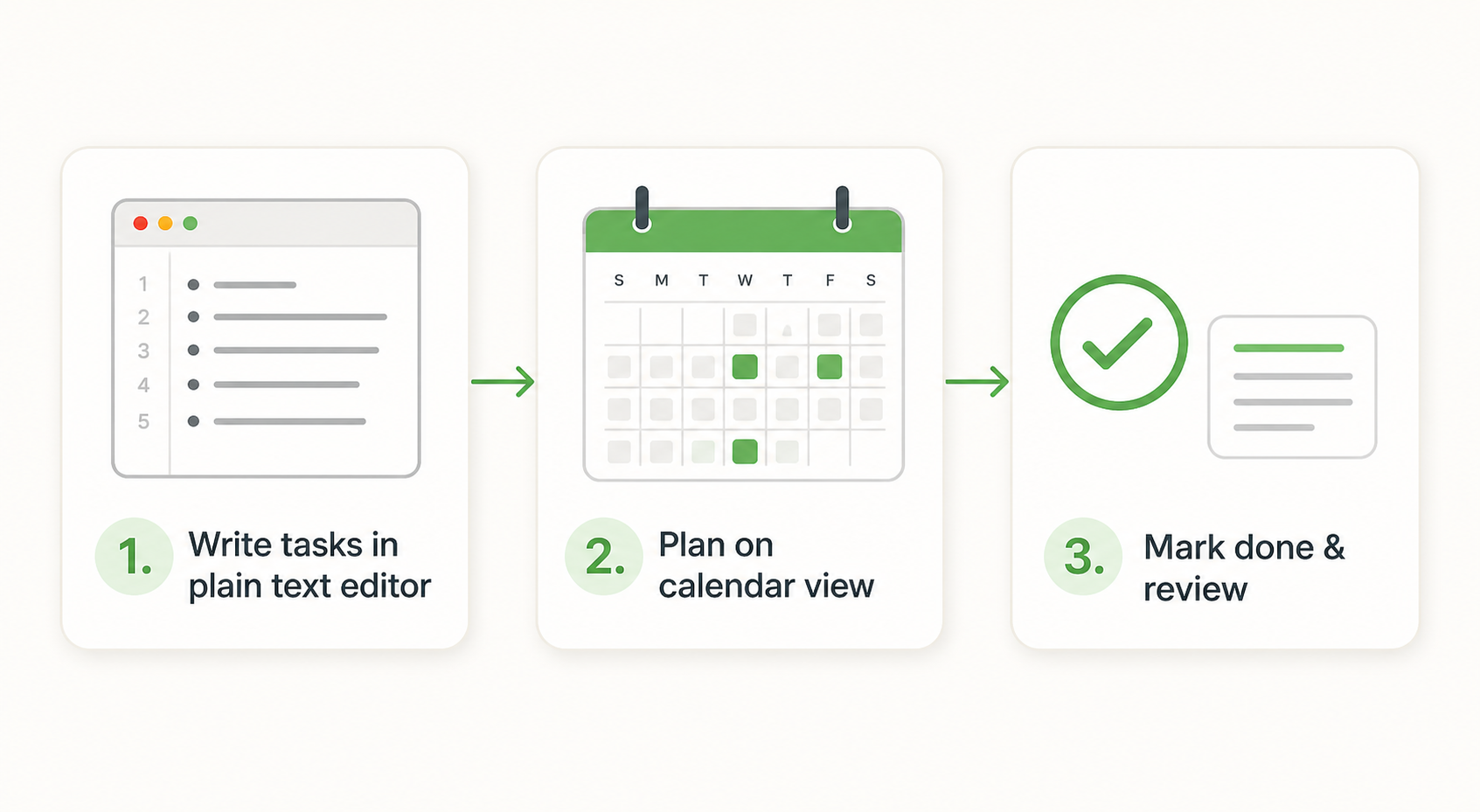
The whole system is three moves: write, plan, review. It takes under ten minutes a day. Here's the exact version I use, including the parts that are annoying to admit.
One honest note before we start: I built the app that does this, so I'm not neutral about it. But the system doesn't need my app, or any app. It needs a text file and something that can show text on a calendar. If you already have both, skip ahead to Step 1.
What you'll learn
- A plaintext task format that survives any app, including ones that don't exist yet
- How to turn a task list into a weekly calendar in one view, so overload is visible instead of felt
- The 10-minute Sunday routine that makes Monday morning obvious
Prerequisites
- A text file.
tasks.txtworks fine. - Any editor, or a plaintext planner if you want the calendar view built in. (The one I made is macOS-only today, in case that matters.)
- Ten minutes on Sunday. That's the whole list.
Step 1: Write tasks as plain text
Plain text means no formatting menus, no proprietary database, no cloud account holding your tasks hostage. It means the file is yours, in a format any computer on earth can read. If the app disappears tomorrow, the file doesn't.
Keep one file per project, or one tasks.txt for everything. Nest tasks with indentation, mark done with x, add dates and estimates inline:
Project: Launch site
  x Write homepage copy (Mon)
  Design hero image (Tue, 2h)
  x Set up analytics
  Review pricing page (Wed)
That's a complete task system. A task is a line, a date, an estimate. Nothing else.
The rule I try to live by: if it takes longer to enter than to do, it's too heavy. If you're picking a project, a priority, a tag, and a recurrence for a task that takes four minutes, the tool is winning. One line, move on.
Honest tradeoff: plain text doesn't sort itself. There's no auto-categorization, no smart lists, nothing that files a task for you. Under time pressure I've dumped a task in the wrong file and found it a week later. That's a real cost of the approach, and I'd rather you hear it from me than discover it on your own.
Step 2: Plan on a calendar view
This is the step most to-do apps get wrong. They give you a list and call it a plan. A plan requires time, and a list doesn't have any.
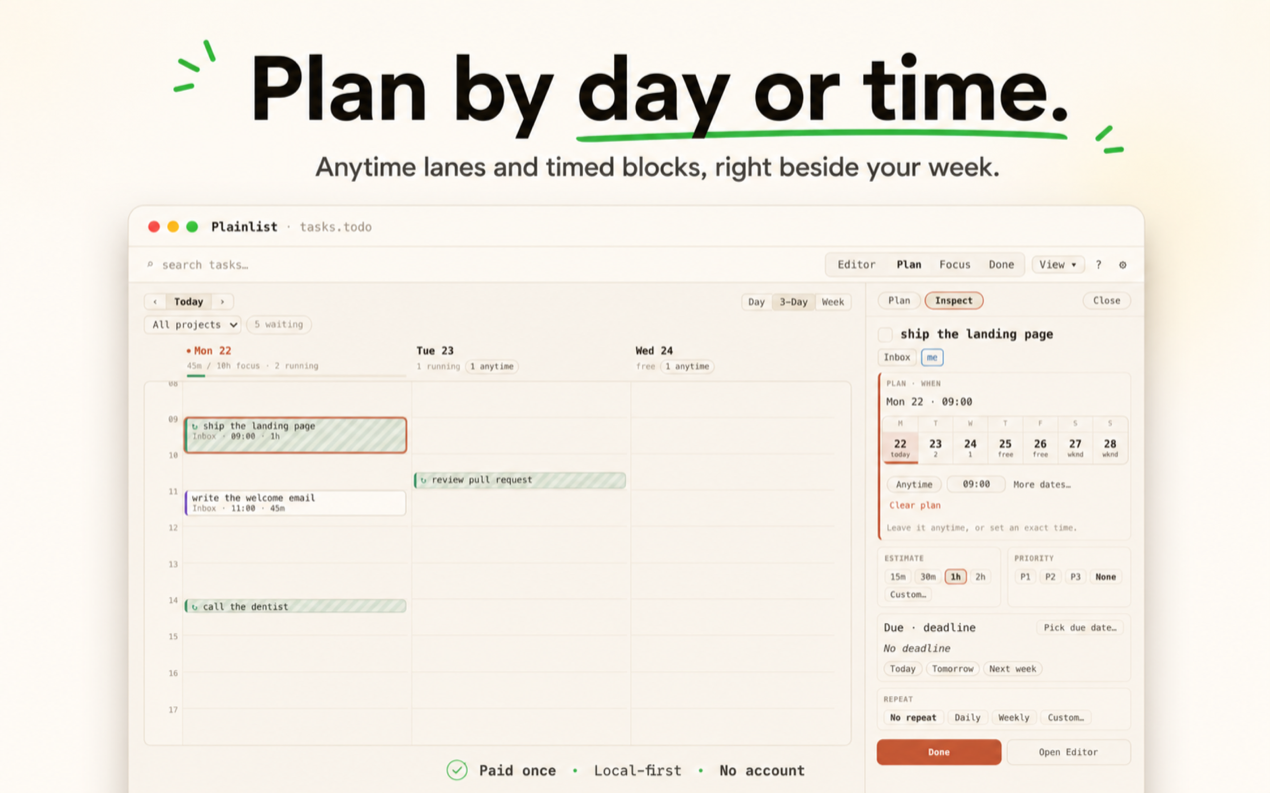
So the second move is getting your tasks onto a calendar. In my app, the Plan view does this automatically: your tasks land on the week, and two things happen at once.
- Dates become commitments. "Design hero image (Tue)" is now a block on Tuesday, not a vague someday.
- Overload becomes visible. If Tuesday has six tasks and Wednesday has one, you see it in one glance. No mental math, no spreadsheet.
Then you drag things around until the week looks like it belongs to a human. That's the entire planning step. It takes about five minutes, and it's the difference between a to-do list and a plan.
When it's done, the file might look like this:
Mon: Write homepage copy · Set up analytics
Tue: Design hero image (2h)
Wed: Review pricing page
That's a whole week. Five commitments, no noise. The overloaded days announce themselves, and the empty ones are honest instead of shameful.
No planner app? Draw seven columns on paper and drop each task into a day. Works the same way. Maybe it's just me, but I think the placing is where the thinking happens, not the tool. The tool just needs to make placing cheap.
Step 3: Review daily, reset weekly
Daily, two minutes. Open the file. Mark done tasks with x. Move anything you didn't do, honestly, to another day. Delete what no longer matters.
That last one is the hard one, and it's the most important. Most task lists die from accumulation, not neglect. Things sit there for weeks, getting heavier, and eventually you stop opening the file because opening it feels like a confession.
Weekly, ten minutes, Sunday. Scan what you actually completed, then write next week's file fresh. Don't copy the old one. The reset is the point: a new week should not start with last week's guilt, and a fresh file is the cheapest way to guarantee that.
Cheap trick: rename the old file to something like tasks-2026-08-30.txt and start a new tasks.txt. That's free history. Two months later you can scroll through your past weeks like a diary, which is a side effect of planning in files that no app ever gives you.
I won't pretend this is easy. I spent years keeping tasks around because they felt like commitments. They weren't. They were noise I felt bad about. The weekly reset forces the decision: is this real, or is it just here?
Result: what this buys you
- Portable forever. A
.txtfile outlives every app you'll ever use. The tools of 2036 don't exist yet, but they'll open your file. - Friction-free capture. Typing one line beats opening a modal with twelve fields. You capture more because capture costs less.
- One source of truth. The editor view and the calendar view show the same file. There's no sync to break because there's nothing to sync. No account, no cloud, by design.
- Scriptable if you want. A text file can be grepped, diffed, and committed. Your plan can live inside your workflow instead of behind a walled garden.
And the honest limits, since you'll hit them eventually: the app I built is macOS-only today, with Windows, iOS, and Android in progress. If you need your tasks on your phone right now, you use your own sync (iCloud, Dropbox, Git) or just a plain file in any editor. The file doesn't care which device reads it. That's the point.
Troubleshooting
- "I forget to open the file." Put it on your desktop. Visible beats organized.
- "My estimates are always wrong." Double them. Everyone underestimates. The file doesn't care, but your Tuesday will.
- "I have fifty tasks a week." No you don't. You have five to seven commitments and a pile of someday. Cut the file to commitments only, and watch the pile stop mattering.
- "I skipped a week." Don't backfill. Just write this week's file. Guilt isn't a task, and it doesn't belong in your planner.
- "I need my tasks on my phone." Open the file in any text editor on the phone, or sync the folder with iCloud or Dropbox. It's not a fancy mobile app, but it's your list, in your pocket, in a format nothing can take from you.
Next step
Try it for one week with a plaintext file. No app required. If you want the calendar view without building it yourself, Plainlist does this on a file you own: paid once, no account, 14-day trial, macOS only for now.
Still on the fence? Read why your to-do app is lying to you, or start with the plain-text task management guide. Either way, the file is waiting. Mondays are easier when they're obvious.